Setup and connection
Discuss the printer model, compatible operating system, official driver, and USB or network connection.
Help with Canon printer setup, connection problems, offline messages, print jobs, and scanning.
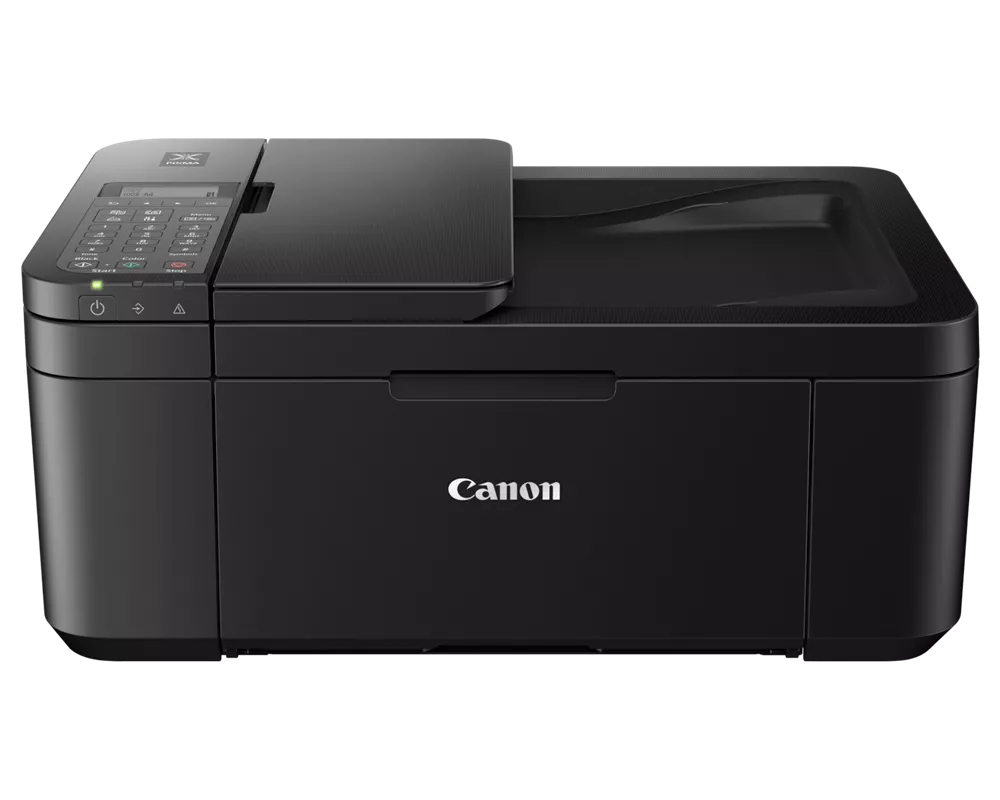
Discuss the printer model, compatible operating system, official driver, and USB or network connection.
Identify whether the printer is offline on all devices or only one. Record the print queue status and any screen message.
Note whether the issue occurs in a print application, scanner utility, or the printer itself. Software availability depends on the exact model.
Note whether the issue occurs in a print application, scanner utility, or the printer itself. Software availability depends on the exact model.
USA Geeks can discuss a paid troubleshooting service for software and configuration issues. Manufacturer warranties, product replacement, account ownership, subscription billing, and official downloads should be handled through the product maker or seller.
Confirm what work is proposed, the price, and whether a remote session is appropriate. Keep your files backed up and remain present during any session you authorize.
Do not send account passwords, one-time codes, or license credentials in an initial email.
Review pricing and scope
A printer can be ready on its own display while a computer still reports it as offline. Compare the printer’s connection status, a test page, and the queue on the affected computer. Use the exact model when looking up official Canon setup or driver information.
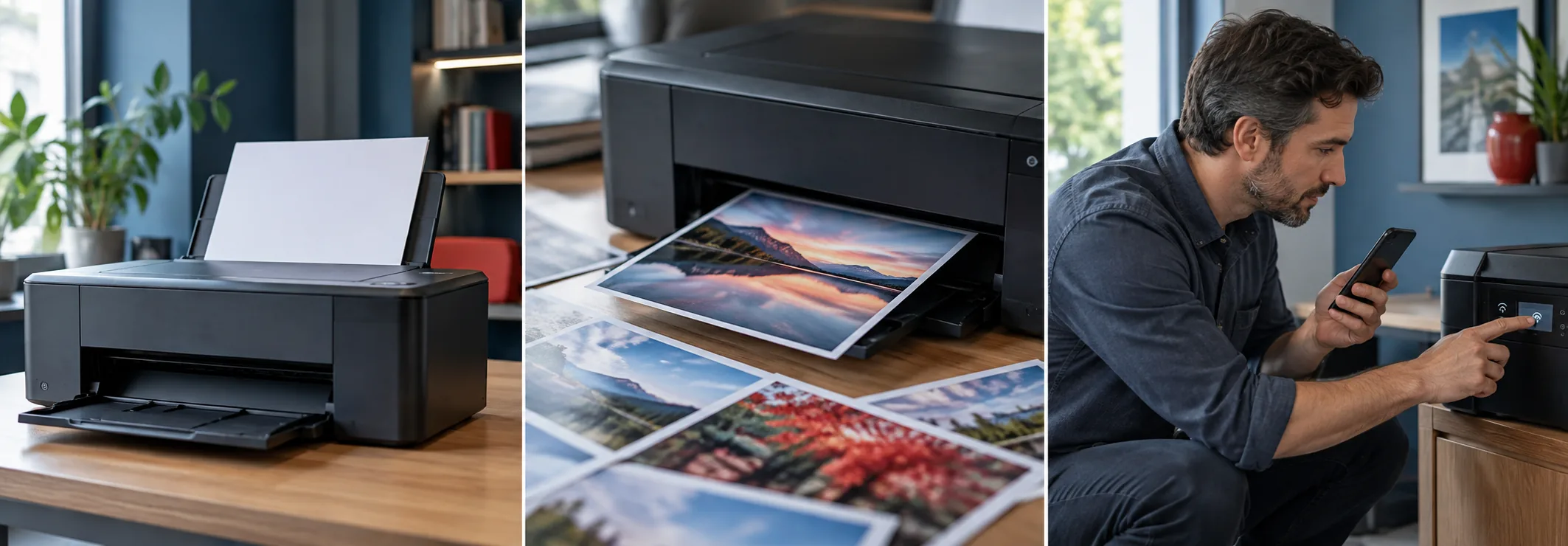
Check whether another device has the same problem. A printer self-test can help distinguish computer settings from a printer issue.
Write down the exact offline, print, scan, or display message before changing settings.
Note whether the issue occurs in a print application, scanner utility, or the printer itself. Software availability depends on the exact model.
Use the product maker’s official support website. Choose the exact model or product and operating system; avoid third-party download pages.
Manufacturer warranties, account recovery, licenses, and billing are controlled by the maker or seller. USA Geeks offers independent troubleshooting and does not make those decisions.
Exact Canon printer model, Operating system and connection details, What changed and what you have already tried. These details help us discuss the next step and a quote.
Describe the problem or project. We will discuss the scope and price before any work is agreed.
These basic steps may solve common problems without a support session. Only download printer drivers from the manufacturer’s official website.
If the problem continues, note the exact printer model, any error code, your operating system and whether the connection is USB or Wi-Fi before contacting an independent technician.